
How to Create YouTube Shorts with Gemini Omni: 9:16 Prompts and Workflow
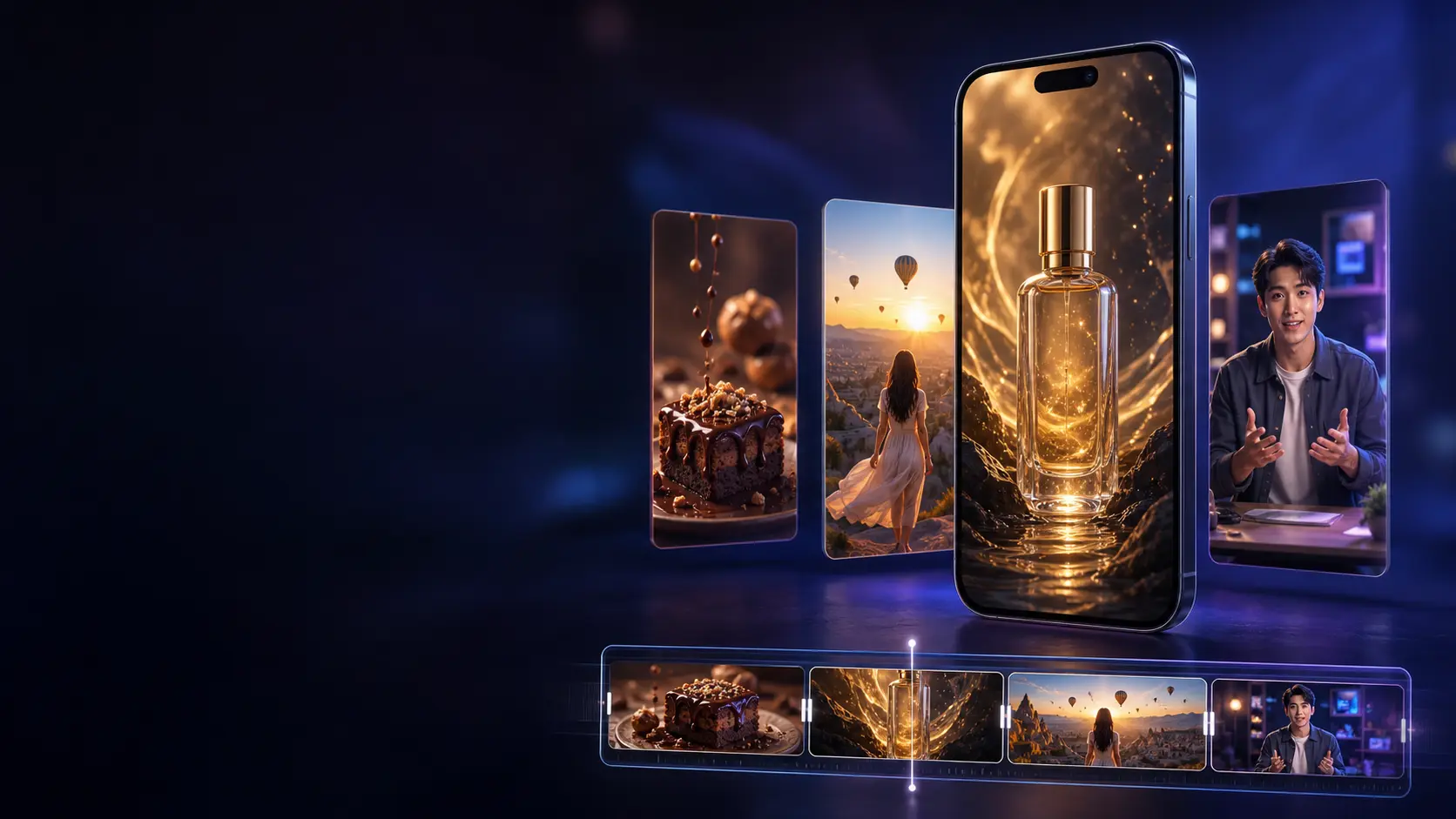
YouTube Shorts reward ideas that can capture attention quickly, communicate clearly on a phone screen, and give viewers a reason to keep watching. Gemini Omni can help creators produce these short vertical videos from text prompts, reference images, and existing visual concepts without organizing a traditional video shoot.
However, selecting a 9:16 aspect ratio is not enough to create an effective Short. A successful result also needs a strong opening, mobile-friendly composition, controlled movement, appropriate sound, and a structure that fits the available duration.
This guide explains how to create YouTube Shorts with Gemini Omni, including recommended export settings, a repeatable production workflow, and practical 9:16 prompt examples.
Can Gemini Omni Create YouTube Shorts?
Gemini Omni can generate portrait video in a 9:16 aspect ratio, making it suitable for YouTube Shorts, Instagram Reels, TikTok, and other vertical video platforms.
Depending on the product or implementation, Gemini Omni may support short clips between approximately 3 and 10 seconds. Some interfaces provide fixed options such as 4, 6, 8, or 10 seconds.
A YouTube Short can be much longer than one generated clip. Square or vertical videos of up to three minutes can currently be categorized as Shorts, but that does not mean you should try to generate an entire three-minute video in one request.
A more controllable workflow is to generate several focused clips and combine them during editing. For example, a 30-second Short could contain:
- A 5-second visual hook
- An 8-second problem or setup
- Two 6-second demonstration clips
- A 5-second conclusion or call to action
Generating scenes separately makes it easier to replace a weak shot without rebuilding the complete video.
Recommended YouTube Shorts Format
Use the following settings as a practical starting point:
| Setting | Recommendation |
|---|---|
| Aspect ratio | 9:16 |
| Resolution | 1080 × 1920 |
| File format | MP4 |
| Video codec | H.264 |
| Frame rate | 24 or 30 FPS |
| Audio codec | AAC |
| Audio sample rate | 48 kHz |
| Color space | SDR BT.709 |
| Clip duration | 4–10 seconds per generated scene |
| Final Short duration | As short as the idea allows; up to three minutes is supported |
YouTube can also classify square videos as Shorts, but 9:16 uses more of a phone screen and is generally the better default for mobile-first content.
Do not add black bars to the sides of a vertical video. Export the project in a native 9:16 canvas.
Understand the Vertical Safe Area
YouTube displays interface elements over a Short, including the title, channel information, engagement controls, and other interactive elements. Their exact position may change across devices and app versions.
Keep essential content away from the extreme edges of the frame.
A reliable composition usually places:
- Faces near the upper-middle area
- Products around the central vertical axis
- Important actions inside the middle 70–80 percent of the frame
- Essential text away from the bottom and right edges
- Small visual details closer to the center
Do not ask the model to place critical information directly against the bottom edge. It may be obscured by captions or interface elements.
If the generated video contains text, verify every word before publishing. For important captions and calls to action, adding them in a video editor is often more reliable than generating them inside the scene.
Step 1: Begin with One Clear Short-Form Idea
A YouTube Short should normally communicate one primary idea.
Weak concept:
Create an exciting video about technology, creativity, marketing, AI, the future, and productivity.
Focused concept:
Show a blank product sketch becoming a finished luxury sneaker in eight seconds.
The focused version gives the model a clear visual transformation and gives the viewer an immediate reason to continue watching.
Before writing the full prompt, summarize the Short in one sentence:
This Short shows ______ changing into ______ so the viewer understands ______.
If you cannot complete that sentence clearly, the idea may be too broad for one short video.
Step 2: Design the First Two Seconds
The opening should communicate movement, contrast, surprise, curiosity, or a recognizable problem almost immediately.
A slow establishing shot can work in a longer film, but it often wastes valuable time in a Short. Instead of beginning with an empty room and waiting for the subject to enter, begin close to the action.
Possible hooks include:
- A product appearing from a burst of particles
- A dramatic before-and-after transformation
- A presenter asking a direct question
- A miniature world forming around an ordinary object
- An unexpected camera move
- A visual process already in motion
- A surprising sound before the main reveal
Describe the hook explicitly:
Begin immediately with the unopened package shaking on the table. Do not use a slow introduction.
Gemini Omni should not have to guess which moment is most important.
Step 3: Choose the Correct Gemini Omni Workflow
Different Shorts require different starting materials.
Text to video
Use text-to-video when the idea does not depend on an existing product, person, character, or design.
It works well for:
- Cinematic concepts
- Satisfying visual processes
- Nature and travel scenes
- Abstract transformations
- Educational visualizations
- Atmospheric B-roll
Image to video
Use a reference image when a specific subject must be recognizable.
It works well for:
- Product demonstrations
- Consistent AI avatars
- Artwork animation
- Character videos
- Fashion concepts
- Branded visual assets
State whether the uploaded image should be used as an identity reference or as the literal first frame:
Use the uploaded image as a visual identity reference. Do not use it as a frozen first frame.
If you want the video to begin from the exact image, say:
Use the uploaded image as the opening frame, then begin the described movement naturally.
Video editing
Use video editing when the original movement is already useful but one element needs to change.
Keep edit requests focused:
Change the background to a rainy neon street. Keep the subject, action, camera movement, timing, and audio unchanged.
Short editing instructions generally make it easier to preserve successful parts of the existing video.
Feature availability may vary by product, plan, region, and interface.
Step 4: Build the Prompt in Layers
An effective 9:16 video prompt can be organized into seven parts:
- Format
- Subject
- Hook
- Action
- Camera
- Lighting and style
- Audio and exclusions
Use this reusable structure:
Create a [duration]-second vertical 9:16 video for YouTube Shorts.
Subject: [main person, product, object, or environment].
Hook: [what happens in the first one or two seconds].
Action: [the exact sequence of visible events].
Camera: [shot size, angle, and movement].
Lighting and style: [visual treatment and mood].
Audio: [dialogue, ambience, effects, and music].
Keep the main subject inside the central mobile-safe area. Do not add subtitles, logos, extra people, black bars, borders, or unreadable text.
This structure separates the creative idea from the technical constraints.
Step 5: Use Time-Based Instructions
When several events must happen in one short clip, describe their timing.
For example:
[0–2s] A sealed silver package shakes on a black table.
[2–5s] The package unfolds into hundreds of metallic strips.
[5–8s] The strips assemble into a futuristic running shoe.
[8–10s] The finished shoe rotates slowly as the camera moves closer.
Time ranges do not guarantee frame-perfect editing, but they communicate the desired rhythm more clearly than a long paragraph.
Do not place too many events in one clip. If every second introduces a new subject, location, camera angle, and effect, the result may feel unstable.
For most Shorts, three or four visual beats are enough.
Step 6: Control the Camera for 9:16 Video
Vertical composition changes how camera movement feels.
A wide horizontal pan may reveal useful information in a landscape video, but it has less space to work in a narrow portrait frame. Forward movement, vertical movement, close tracking, and controlled subject movement often work better.
Useful camera instructions include:
- Stable medium shot
- Slow camera push-in
- Low-angle upward tilt
- Smooth backward tracking shot
- Gentle handheld close-up
- Top-down shot moving toward the subject
- Slow vertical reveal from bottom to top
- Locked camera with movement inside the frame
Avoid combining several camera moves in a short generation.
Instead of:
The camera circles, zooms, tilts, flies upward, and then rapidly tracks backward.
Use:
The camera makes one smooth clockwise quarter-orbit while maintaining a medium close-up.
One clearly described movement is easier to execute and easier for viewers to understand on a phone screen.
Step 7: Prompt the Audio Deliberately
Audio can make a Short feel finished before captions or editing are added.
Describe the sound as carefully as the picture:
- Environmental ambience
- Product sound effects
- Spoken dialogue
- Music style
- Rhythm changes
- Important moments of silence
Example:
Sound design: a soft paper tear, three precise mechanical clicks, and a restrained electronic beat that rises during the final reveal. No dialogue.
For a presenter video:
Voice: warm adult female voice, confident and conversational, moderate pace, clear pronunciation. Quiet studio ambience underneath the dialogue.
Keep spoken lines short enough for the clip. An eight-second presenter video generally works better with one concise sentence than with a full paragraph.
Do not rely on generated music or dialogue without reviewing it. Listen for pronunciation errors, distortion, abrupt endings, excessive volume, and sound effects that do not match the action.
Voice editing and reusable voice features are not available in every Gemini Omni implementation. When voice continuity is important, you may need to add the final narration during editing.
Five Gemini Omni 9:16 Prompt Examples
The following prompts can be adapted for different YouTube Shorts channels.
Prompt 1: Cinematic Product Reveal
Create an eight-second vertical 9:16 product reveal for YouTube Shorts.
[0–2s] Begin immediately with a transparent luxury perfume bottle emerging from a pool of dark reflective liquid. Tiny droplets move outward in slow motion.
[2–6s] A narrow ribbon of warm golden light travels around the bottle while the camera makes one smooth clockwise quarter-orbit.
[6–8s] End on a stable close-up with realistic reflections passing through the glass.
Dark premium studio, black stone surface, warm gold highlights, photorealistic commercial lighting, restrained cinematic color grading.
Sound design: deep soft impact at the beginning, delicate glass chime during the orbit, subtle room ambience. No dialogue.
Keep the bottle centered inside the vertical mobile-safe area. No labels, no subtitles, no logos, no extra products, no black bars, and no scene cuts.
Prompt 2: Satisfying Food Short
Create an eight-second vertical 9:16 food video for YouTube Shorts in one continuous macro shot.
Begin immediately with a spoon breaking through the caramelized top of a small crème brûlée. Show the crisp sugar layer cracking into delicate pieces.
The spoon moves slowly into the soft custard and lifts one smooth portion toward the camera. A thin curl of steam is visible in warm backlight.
Stable close-up, shallow depth of field, realistic food texture, warm restaurant lighting, natural color, premium food cinematography.
Sound design: a clear sugar crack, soft spoon movement, and quiet café ambience. No music and no dialogue.
Keep the dessert and spoon centered. No hands covering the food, no text, no logos, no extra dishes, no cuts, and no exaggerated slow motion.
Prompt 3: Travel-Style Vertical Scene
Create a ten-second vertical 9:16 travel video for YouTube Shorts.
[0–3s] Start behind a lone traveler as she opens a wooden balcony door onto a dramatic mountain valley at sunrise.
[3–7s] The camera follows her forward in one smooth tracking movement as warm sunlight enters the room and morning mist moves through the valley.
[7–10s] She stops at the balcony, and the camera rises slightly to reveal the landscape above her shoulders.
Natural cinematic realism, soft golden morning light, subtle wind moving her hair and clothing, detailed mountain atmosphere.
Sound design: wooden door movement, gentle wind, distant birds, and quiet uplifting instrumental music.
Keep the traveler near the center of the vertical frame. No dialogue, no subtitles, no logos, no abrupt cuts, and no drone-style camera flight.
Prompt 4: AI Avatar Presenter
Use the uploaded portrait only as the identity reference for an original fictional adult presenter. Do not use the image as a frozen first frame.
Create a ten-second vertical 9:16 presenter video for YouTube Shorts. Preserve the presenter’s face, hairstyle, apparent age, clothing, accessories, skin tone, and body proportions.
She stands in a warm modern creative workspace, framed in a stable medium shot. She looks directly into the camera and says:
“Great Shorts begin with one clear idea. Show the result first, then explain how you made it.”
She makes one small open-hand gesture during the first sentence and points gently toward a screen during the second sentence.
Voice: warm adult female voice, confident and helpful, moderate pace, clear pronunciation, natural pauses.
Soft window light, realistic skin texture, accurate lip synchronization, natural blinking, restrained gestures, and a clean background.
Keep her face and hands inside the central mobile-safe area. No subtitles, no text overlays, no logos, no extra people, no cuts, and no changes to her identity or clothing.
Prompt 5: Before-and-After Room Transformation
Create an eight-second vertical 9:16 interior transformation video for YouTube Shorts with a locked camera.
[0–2s] Show a small empty apartment room with plain white walls, an uncovered concrete floor, and one large window.
[2–6s] The room transforms in a continuous wave moving from the back wall toward the camera. Warm wooden flooring, a cream sofa, plants, shelves, soft curtains, and modern lighting appear naturally in sequence.
[6–8s] End on the completed comfortable living room as the curtains move gently in the breeze.
Realistic interior design, warm Scandinavian-inspired palette, natural daylight, accurate perspective, believable materials.
Sound design: restrained whoosh during the transformation, soft placement sounds, and calm ambient music at the end.
No people, no text, no logos, no camera movement, no walls changing position, and no objects intersecting.
Step 8: Review the First Generation
Do not judge a generated Short only by its most attractive frame.
Watch the complete video several times and check:
- Does the first two seconds create interest?
- Is the main subject easy to understand on a phone-sized screen?
- Does the action follow the intended order?
- Is the camera movement stable?
- Does the video use the complete vertical frame?
- Are faces, hands, products, and text visually correct?
- Does the audio match the action?
- Does the ending feel intentional?
- Can the clip loop naturally if needed?
A visually impressive clip can still fail as a Short if the hook arrives too late or the ending cuts off suddenly.
Step 9: Refine with Focused Instructions
If the generation is mostly correct, request one focused change instead of rewriting the complete prompt.
Examples:
Make the opening transformation begin immediately. Keep everything else the same.
Keep the product centered throughout the camera movement. Keep everything else the same.
Reduce the camera speed and stabilize the final close-up. Keep everything else the same.
Remove the background music but preserve the sound effects and ambience. Keep everything else the same.
Make the presenter’s hand gesture smaller and more natural. Keep everything else the same.
A focused editing request gives the model a clearer target and reduces the chance of damaging successful details.
If the entire composition is wrong, a new generation may be more efficient than repeatedly editing a weak result.
Step 10: Assemble Multiple Clips
Gemini Omni generates short scenes rather than complete three-minute productions. To create a longer Short, combine several generated clips in a vertical editing timeline.
Use a 1080 × 1920 sequence and keep the project at the same frame rate as the generated footage whenever possible.
A practical 30-second structure could be:
| Time | Purpose |
|---|---|
| 0–3 seconds | Show the result or strongest visual |
| 3–8 seconds | Introduce the question or problem |
| 8–20 seconds | Show two or three process clips |
| 20–27 seconds | Deliver the explanation or payoff |
| 27–30 seconds | End with a loop, conclusion, or call to action |
Trim pauses aggressively, but do not cut so quickly that viewers cannot understand the subject.
Match the clips using consistent color, audio levels, character references, products, and camera direction. If the same avatar appears in several scenes, reuse the same reference image and identity description.
Step 11: Add Captions and Export
Many viewers encounter Shorts with low volume or no sound. Captions can improve comprehension, especially for tutorials and presenter videos.
Keep captions concise:
- Use one short phrase at a time
- Choose a large, readable typeface
- Use high contrast
- Keep text away from the bottom and right edges
- Do not cover the subject’s face or product
- Check spelling manually
- Time captions to the spoken words
Export as an MP4 with H.264 video and AAC audio. For a standard 1080 × 1920 Short at 24 or 30 FPS, a video bitrate around 8 Mbps is a reasonable upload target. Preserve the original frame rate instead of converting unnecessarily.
Make sure the MP4 is optimized for streaming with its metadata positioned at the beginning of the file when your encoder offers a “Fast Start” or “Web Optimized” option.
Common YouTube Shorts Prompting Mistakes
Forgetting to specify 9:16
A prompt may describe a mobile video without explicitly requesting a portrait aspect ratio. Select 9:16 in the interface and repeat it in the prompt.
Starting too slowly
Do not spend half of an eight-second clip establishing the location. Begin close to the most interesting action.
Putting important content at the edges
Interface overlays can cover text, products, and small objects. Keep essential content near the center.
Adding too many scenes
A short clip cannot reliably communicate five locations, multiple characters, several camera moves, dialogue, and a product transformation at once.
Divide the idea into separate generations.
Writing dialogue that is too long
Excessive dialogue creates rushed speech and weak lip synchronization. Read the line aloud before generating and confirm that it fits comfortably within the duration.
Allowing the model to invent text
Generated signs, labels, and captions may be incorrect. Add important marketing copy during editing unless in-scene text is essential to the concept.
Ignoring the audio
Unexpected music or dialogue can change the mood of an otherwise useful video. State clearly whether you want dialogue, music, ambience, effects, or silence.
Uploading a horizontal clip with black bars
Do not place a landscape video inside a vertical canvas with large empty areas. Generate or crop for 9:16 intentionally.
Frequently Asked Questions
What aspect ratio should I use for YouTube Shorts?
Use 9:16 for a full-screen vertical experience. A resolution of 1080 × 1920 is a practical standard for final export.
How long can a YouTube Short be?
A square or vertical YouTube Short can currently be up to three minutes. However, the ideal duration depends on the idea. Do not make a video longer simply because the platform permits it.
How long are Gemini Omni video clips?
Available durations depend on the product or implementation. Gemini Omni commonly generates short clips of up to approximately 10 seconds, which can be combined into a longer Short.
Can Gemini Omni generate audio?
Gemini Omni can generate video with an appropriate audio track and can be prompted for dialogue, ambience, music, and sound effects. Review all generated audio before publishing.
Can I create a consistent presenter for several Shorts?
Yes. Use a clean character reference image, repeat the same identity description, preserve the same clothing and voice direction, and generate one controlled base clip before changing environments.
Should I generate captions inside the video?
For important captions, adding them during editing is generally more reliable. This gives you direct control over spelling, timing, typography, placement, and safe areas.
Can I create a complete three-minute Short in one generation?
A multi-clip workflow is more practical. Generate each scene separately, select the best versions, and assemble them in a vertical video editor.
Final Thoughts
Creating YouTube Shorts with Gemini Omni is not only about switching the aspect ratio to 9:16. The strongest results come from combining a focused idea, an immediate hook, mobile-friendly composition, controlled camera movement, deliberate sound, and disciplined editing.
Start with one short visual concept. Describe what happens during the first two seconds, keep the main subject inside the central safe area, and divide complex stories into separate clips. Use time-based instructions when several events must occur, and make focused edits rather than rewriting successful generations.
Once the clips are ready, assemble them in a 1080 × 1920 timeline, add readable captions, review the audio, and export a clean vertical MP4 without black bars.
Start creating your next vertical video with Gemini Omni, then treat every generated clip as one carefully planned building block of the final YouTube Short.